Showing posts with label computer tips. Show all posts

Thursday, June 25, 2009

Computer Tips # 9 - New Safari 4 browser!!


Click the picture for larger view.
Wow, apple have release the new version of safari which is "safari 4"....
Which this, the Firefox and Internet Explorer ("IE")will have a great challenge ...
No only is it fast, Safari 4 also offers many new features for their browser's fan...

According to the apple's report, Safari 4 is > 3 times faster than IE and Firefox when loading HTML web pages.

4 times faster than IE, 3 times faster than Firefox and 4.5 times faster than previous version of Safari when loading Javascript.....

This software has just recently been made available for a free download at http://www.apple.com/safari/

The above picture shown the "Top Sites" page for the Safari 4, a new feature....
it display the front pages of your 12 most viewed web sites....
this is nice and wonderful like my computer tips # 1.

I highly recommend this browser to be used due to the enjoyable browsing experience.

Enjoy!!

Monday, May 18, 2009

Computer Tips # 8 - Wolfram Alpha vs Google

Let me recommend this new search engine that can challeage google in future....known as Wolfram Alpha....


I think that you may have experience before, you are looking for something but end up search engine show up a lot of none related pages to the thing that you are looking for....Wolfram Alpha maybe is the solution that you are looking for...it provide you with an answer...Try this http://www71.wolframalpha.com/input/


On the top right side of the screen it will show a list of Wolfram Web Resource as above.

Try to Search for "Edison"The result come out as above....wow....it show the information of Thomas Edison...This computational knowledge search engine is good for people such as professional or even students...
Try it and comment your thought...tq..

Thursday, May 7, 2009

Computer Tips # 7 - Kiosk Mode for Internet Explorer

Do you know how to apply kiosk mode in Internet Explorer?
Definiton : When kiosk mode applied, title bar, menus, toolbars and status bar for Internet Explorer will not appear in the screen and Internet Explorer will be running in Full Screen mode.
This is cool because, the whole pc in front of you will show only the website that you applied the kiosk mode to......Steps: -
1) Click on Start
2) Click on Run
3)Type
iexplore -k url in the open box
Note: "-k" means kiosk mode and "url" means web address that you want it to be applied in kiosk mode, e.g. http://www.yahoo.com/. (as shown above.)
4)Press Enter.
5)Wah!...wonderful...the screen above shown in the whole screen of your pc or notebook....
What happen if you just type in iexplore -k but without the web address?
Answer: It will show your homepage. Try and see...
Some of the keyboard shortcuts you may like to learn here:-

a) CTRL+A = Select all
b) CTRL+B = Organize favorites
c) CTRL+C = Copy
d) CTRL+F = Find on current page
e) ALT+F4/CTRL+W = Close
f) ALT+LEFT ARROW = Back
g) ALT+RIGHT ARROW = Forward
h) ESC = Stop
I) F5 = Refresh
J) CTRL+H = View History folder
k) CTRL+L / CTRL+O= Open Location dialog box
l) CTRL+N = New window (opens in non-Kiosk mode)
m) CTRL+P = Print
n) CTRL+R = Refresh
o) CTRL+S = Save
p) CTRL+V = Paste
q) CTRL+X = Cut
P/S: Enjoy and kindly post a comment here...tq:D

Wednesday, May 6, 2009

Computer Tips # 6 - Web Translation

Have you ever encounter the problem of one of the website that you are surfing is writen in a language that you don know how to read? e.g. chinese, japanese or even korean.....
How can we read this web? if this website is only writen in the particular language?
Erm......the answer is by using translation tools...
Let me introduce you one of the translation website that I usually use....

After you login to the link, the above screen will appear. Then type in the web address of the website you intend to translate....e.g. http://www.verycd.com/.

Then choose the original language of the website and the language you intend to translate it into....and press enter.

The translation process begin....

Picture 1 : Original website in chinese.

Picture 2 : Tadaa.....after the translation process, the website change in the english language....

Hope this post is beneficial....Drop your comment...TQ.

Saturday, May 2, 2009

Computer Tips # 5 - Map Search

This time, let me introduce a map for you to search to a place or location in Malaysia or any other country all around the world.
The Address for the map seach is http://wikimapia.org/After entering to the website stated above, you will see the screen as above. There will be a search option at the top right side of the screen. Try to any particular place that you need to search for, for example, "Uptown Damansara". Then a list of related location will come out. Click on the related link and screen as below will be shown.
This is cool for map search for any location you intend for go. There maybe many other map search website available in the web, however this is one of the most popular map search website available as I aware of. Enjoy:D
P/S: Do Leave comment if you find any related or better site to use. Thanks....

Friday, May 1, 2009

Computer Tips # 4 - Change the Name of your Recycle Bin

Have you ever thinking of how to change your Recycle Bin's name?
Let me share you about how to do this is a simple steps.
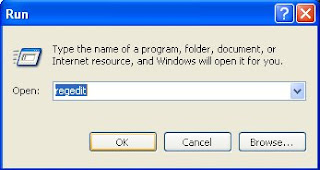
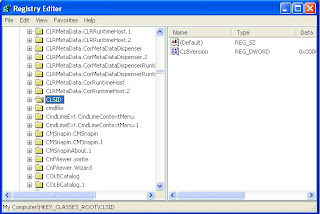
First you have to open the "run" command and type in "regedit" to open the registry editor. After you have press enter, the screen above will be available and you have to click on "HKEY_CLASSES_ROOT"
Later, find the "CLSID" and click on it.
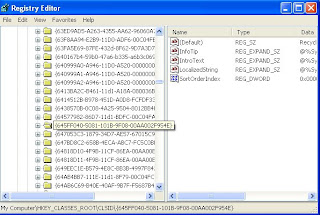
Next, find the {645FF040-5081-101B-9F08-00AA002F954E}
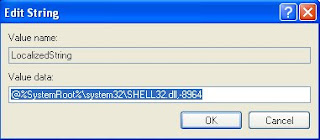
On the right pane, locate the registry key of LocalizedString and press enter. The Screen above will be shown.
You should see the default value of “@%SystemRoot%\system32\SHELL32.dll,-8964"

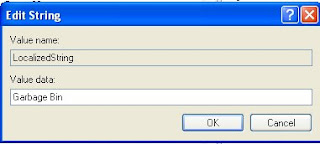
Change the of the default value above to name that you like eg. "Garbage Bin". Without Quote.

Then press Ok. Close the Registry Editor and then refresh your desktop by pressing "F5", then you should be able to see the new name for your recycle bin.

Have a nice day^^,

Thursday, April 30, 2009

Computer Tips # 3 - Playing Dota using Hamachi

Hamachi is a software that can sets up a virtual LAN network at your own home without the need to go to cyber cafes to play a LAN games eg Dota (Warcraft).

Hamachi is available in the link below:-
http://filehippo.com/download_hamachi/

After you click on the link stated above, you will be able to see page above. Then download the latest version of the software.

The installation process begin. For the installation process, there will be a page that need you to click on "Disable vulnerable Windows services over Hamachi". After downloading, you will be able to see software icon as above.
After installation, interface will be shown like the one above. For the first time of the usage of this software, the settings is preset.

You can make a change in the settings in the "Preferences" under the "System Menu" later.
Click on the right button and select "Preferences.." under "System Menu".
You can make configuration on the "Connection Preferences".
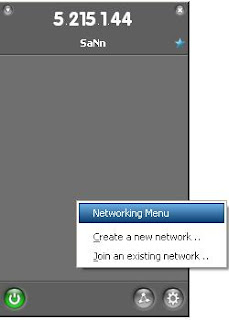
After all your configuration, you can start to "Create a new network".

This will come to the screen above, you will have to enter your network name and password for the network you are creating. You will have to inform your friends about the network name and password to they to connect and find your network. By doing this, you should be able to play Dota with your friend at your home.
Enjoy the software recommended!

Tuesday, April 28, 2009

Computer Tips # 2 - Electronic Stickes 6.7a

We can now use sticky notes to leave reminders or write down certain important manners or events and stick it on our monitor or notebook. It lets us place such notes on our desktop screen. Try this address >> http://www.zhornsoftware.co.uk/stickies/download.html
Picture 1: The homepage of the link is showed as above.Picture 2 : The installation process
Picture 3 : After the installation process, sticky is ready to be used.
Try this software and make a comment whether it is useful or not.
Thank you.

Sunday, April 26, 2009

Photoshop - Simple Puzzle Effect in Adobe Photoshop

This time, I would like to show the photoshop tips to
do some puzzle effect over any photos that you like
Picture 1 : This is an original picture
Picture 2 : By using Adobe Photoshop and the functions of
texture and the effect of puzzle will come out.
Simple steps are shown as follows: -
1) This effect can be found in the filter>>texture>>texturizer
2) Select sandstone from the drop down box from the "texture" option.
3) Load texture and find: Adobe Photoshop>>Presents>>Textures>>Puzzle.
After further admendment this is the outcome of the puzzle effect.

Saturday, April 18, 2009

Computer Tips # 1 - 3D software


Let me recommend a software that can make your pc or notebook looks wonderful and great...
It call Cooliris, the full-screen 3D Wall that can be used not only to speed up your search on Google Images, YouTube, Flickr but also to view photo from your Facebook, Picasa.

Download this software and try it now.

The link is available as follows:-
http://www.cooliris.com/

Saturday, February 7, 2009

Photoshop 《Different Photo Effects》

Let's use see how Photoshop help us to make photo effect on photoPicture 1 : The above photo is original picture took at Penang Picture 2 : After the stained glass effect
Picture 2 : After the water colour effect Picture 3 : After the graphic pen effect
The above all is the photo effect of adobe photoshop CS.

Friday, February 6, 2009

Photoshop 《Photo to Painting》

Introducing the use of Adobe Photoshop CS
The purpose is to change a photo into painting.
Picture 1: Photo above is an original picture Step 1: Change the shadow highlight

Step 2 : Some editting is needed
Step 3 : The original colour is retored

Final : A photo have becomes paintings after the use of Adobe Photoshop CS.

Photoshop 《Zoom Effect》

Introducing the use of Adobe Photoshop CSPicture 1 : Original Picture

Picture 2 : Picture after the zooming effect of Adobe Photoshop CS.
Related Posts with Thumbnails